
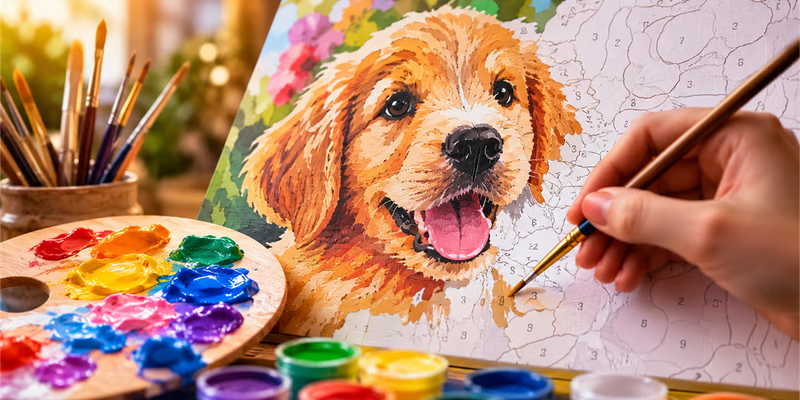
How to Make Paint by Numbers from Photo
Paint by numbers is one of the most accessible ways to try your hand at art: you don’t need to know how to mix proportions, build a composition, or understand perspective - everything is already done for you. In the past, you had to buy a ready-made kit with someone else’s subject. Today, you can create a painting scheme from any of your own photos or images you like - for free and in just a few minutes, using the PaintByNumbers online generator.
In this guide, we’ll break down the entire process: from choosing a photo to a finished paint-by-numbers kit with matched paints - step by step.
Step 1. Choose the Right Photo
The quality of the final painting pattern directly depends on the source image. Here are a few rules to consider:
- Good lighting and sharpness. The generator will process blurry, dark, or overexposed photos, but the result will be less neat, with fuzzy boundaries between zones.
- Not too complex a background. A portrait on a solid background or a landscape with clear objects turns into a paint-by-numbers scheme much cleaner than a shot with dozens of small details in the background.
- Good contrast between the subject and the background. This helps the generator highlight outlines more accurately.
Important point: not only personal photos work. You can use any image saved on your device - a frame from your favorite cartoon, game character art, or a photo from the internet. Children love this: turning a favorite hero into a painting project is much more exciting than working only with family archives.
Step 2. Upload the Image to the Generator
Open PaintByNumbers and upload your chosen photo - drag the file into the upload window or select it via the file explorer. No registration is required, and processing happens directly in your browser: the image is not sent to a server and is not saved anywhere.
Step 3. Adjust the Pattern Settings
This is a crucial stage - the settings determine how convenient and high-quality the final result will be. The generator has three main parameters:
Number of colors. Determines how many shades will be in the palette:
- For portraits, complex compositions, and photos with smooth color transitions, it’s better to choose more colors - 20 and above. This gives a more realistic and detailed picture.
- For simple subjects - landscapes, objects with clear outlines, cartoon images - 8-15 colors are enough. The scheme will be simpler and faster to paint.
Detailing. Responsible for how many small elements from the source image will make it into the scheme. The higher the value, the more accurately small details are processed - relevant for portraits and photos with complex textures. For simple images, detailing should be lowered so the pattern doesn’t become overloaded.
Smoothing. Removes small “noisy” spots by merging them with neighboring zones. A high smoothing value creates larger, more convenient areas for painting - but some small details are lost.
Tip: don’t settle for default settings. The preview updates instantly, so you can change parameters and see the result immediately - 2-3 minutes of experimentation usually yield a much better result.
Step 4. Download the Finished Pattern
When you are satisfied with the result - export the file. PaintByNumbers creates a print-ready paint-by-numbers pattern in high quality (300 DPI): with numbered zones, outlines, and a palette of all used colors.
Step 5. Match Your Paints
If you already have a set of acrylic or gouache paints, you don’t need to buy specific shades for a pattern - you can mix the palette yourself. For this, PaintByNumbers has a separate tool - paint matching for mixing.
How it works:
- Choose the desired color from the pattern palette - via the color picker, HEX code, or the “pick color from screen” tool.
- The tool calculates a mixing recipe based on basic pigments - for example, “60% ochre + 40% cyan” - and shows the exact proportion.
- If the color already matches one of the basic paints, it will show this immediately.
The calculation is done in the Lab color space rather than raw RGB values - this provides a more honest color match, closer to how the human eye perceives color. Note that for very bright, neon, or fluorescent shades, the recipe might be an approximation.
Step 6. Start Painting
A few practical tips for those painting by numbers for the first time:
- Start with large zones and light tones, gradually moving to small details and dark shades - this makes it easier to avoid smudging already painted areas.
- Let the paint dry completely before painting a neighboring zone, especially if the boundaries are close.
- Keep the printed palette with numbers handy - it’s easier to navigate if you start and finish painting on different days.
FAQ
Is the paint-by-numbers generator really free?
Yes, it is completely free to use without limits. A donation to the developer is optional.
Is registration required?
No, registration and account creation are not required - just open the site and upload an image.
Is the image uploaded to a server?
No. All processing happens locally in the browser; the file does not leave the user’s device.
Can I use a photo from the internet?
Yes, the generator works with any image - personal photos, screenshots, art, or pictures of favorite characters.
Can I print the finished painting?
Yes, the exported file is immediately ready for printing.